
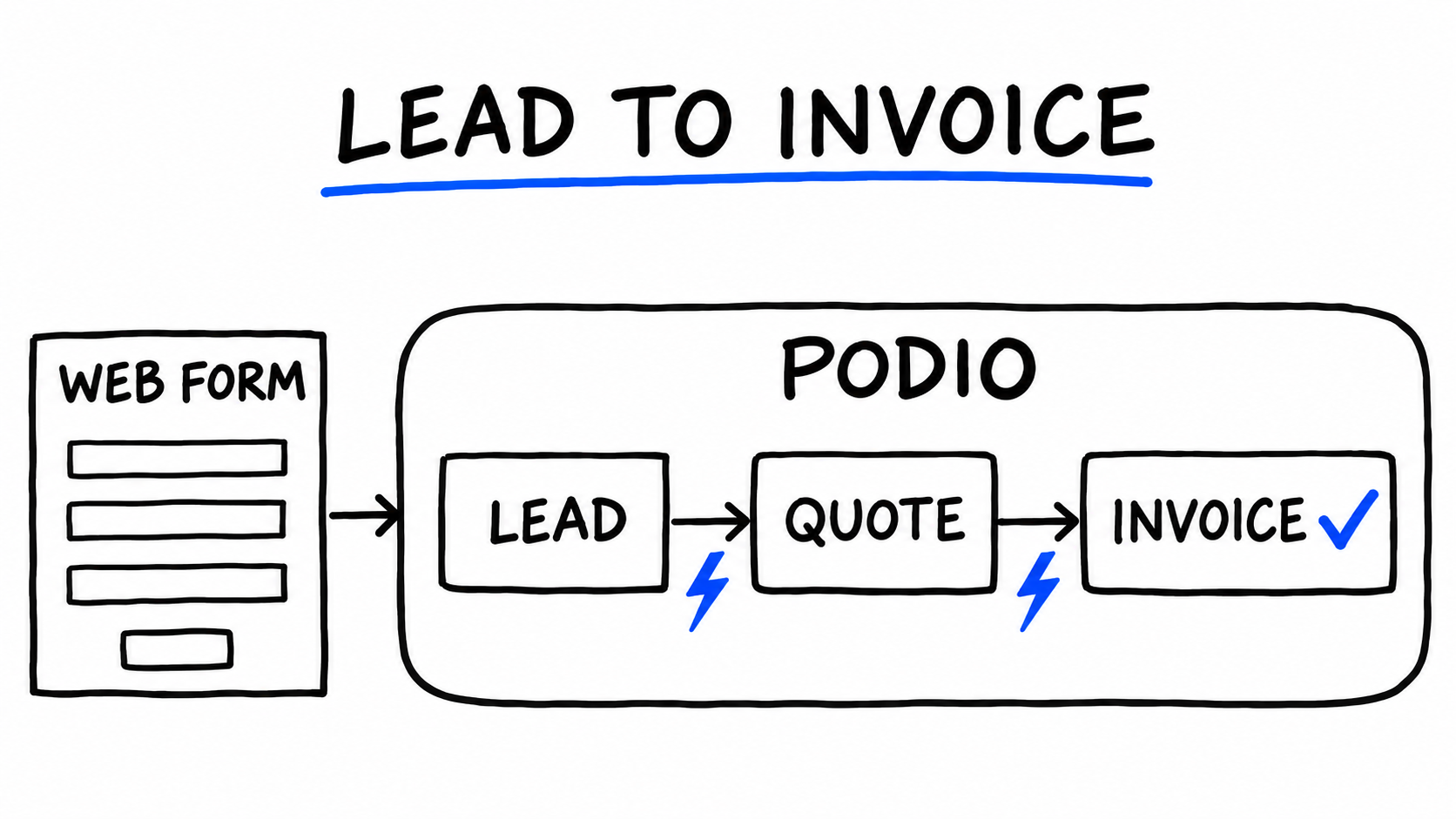
A lot of small service businesses run sales out of an inbox and a spreadsheet. Enquiries come in by email, someone copies them into a sheet, a quote gets written in a word processor, and the invoice is typed up again from the quote. Each copy is a chance for a detail to go missing or for a lead to sit untouched because everyone thought someone else had it.
This post walks through moving that whole path into Podio: a public form that creates the lead, ProcFu flows that assign it, and status changes that create the quote and then the invoice. The example is a trades business that does plumbing and electrical work, but the structure fits most businesses that quote before they bill.
The three apps
Keep it to three apps in one workspace. Each record links back to the one before it, so you can open any invoice and click through to the quote and the original enquiry.
Leads
| Field | Type | Notes |
|---|---|---|
| Name | Text (title) | |
| Phone | Phone | |
| Service | Category | Plumbing, Electrical, Other |
| Urgency | Category | Today, This week, No rush |
| Details | Text (multi-line) | What the customer wrote |
| Source | Category | Web form, Phone, Referral |
| Status | Category | New, Contacted, Quoting, Won, Lost |
Quotes
| Field | Type | Notes |
|---|---|---|
| Title | Text | |
| Lead | Relationship | Points to Leads |
| Amount | Money | |
| Status | Category | Draft, Sent, Accepted, Declined |
Invoices
| Field | Type | Notes |
|---|---|---|
| Title | Text | |
| Quote | Relationship | Points to Quotes |
| Amount | Calculation | Pulls Amount from the related quote |
| Status | Category | Draft, Sent, Paid |
Use category fields for anything you will filter or route on. A category gives you one spelling of "Plumbing" instead of five, and the flows below compare against those exact values. Letting a calculation field pull the amount from the quote means nobody retypes the number.
A public intake form with a Mini App
Podio's own webforms will create items, but a ProcFu Mini App gives you more control over what the visitor sees and what happens after they submit.
Create a Mini App with Podio as the data source and add a Data Detail Record screen on the Leads app. Detail screens have view, edit and create modes, and each field can be shown, hidden, made read-only or marked required per mode. For the intake form:
- Use create mode, and show only Name, Email, Phone, Service, Urgency and Details.
- Mark Name, Email, Service and Details as required. The form will not submit until they have values.
- Leave Status and Source off the form and give them default values (New, Web form) in the screen's field settings, so every web lead arrives in the same state.
- Mark the screen Public so visitors don't need to log in.
A public screen is reachable by anyone with the link, so keep it to the create form. Don't add list or detail screens that show existing leads to the public.
Two code events are useful here. On Submit Validation runs server-side after the required-field check and before the save, and can return an error to block the submission, which is the place to reject an obviously bad phone number. After Submit runs once the item is saved and can redirect the visitor to a thank-you screen.
You can serve the form from its own slug, a custom domain, or embed it in your website with an iframe.
Flows at each stage
The automation lives in ProcFu flows. Go to Flows, click Add App, and enter the app ID for Leads (then repeat for Quotes). ProcFu registers webhooks on the app so that flows run when items are created or updated. Each flow has one trigger: On Create, On Update, On Delete or On Schedule.
New flows open in the visual builder, where you add bricks such as If / Condition, Create Item, Update Item, Create Comment and Assign Task. You can switch a flow to ProcScript code at any time, but the switch is one-way.
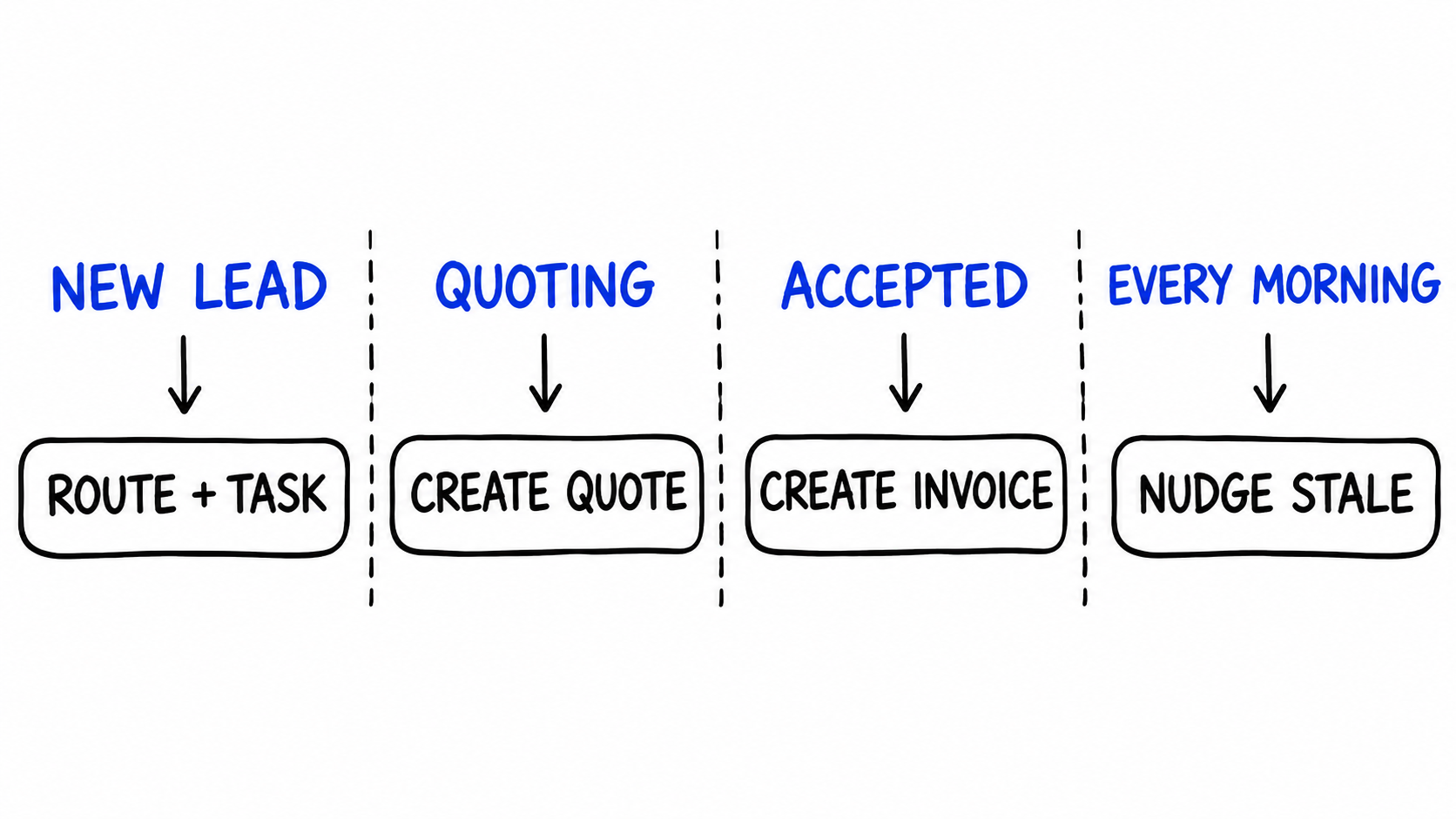
1. New lead: route it and create a task
Trigger: Leads, On Create.
The flow needs to pick an owner from the Service field and give that person a task with a due date. In the builder that is an If brick per service, each with an Assign Task brick inside it. The Assign Task brick takes the item, a task name, details, an email address to assign to, and a relative due date (today, tomorrow, in 2 days, and so on).
The builder's If brick has no else branch, so a catch-all owner for "Other" is awkward to express with bricks alone. This is a good point to switch to code:
$f = $payload["item_fields"];

$owner = "office@example.com";
IF ($f["service"] == "Plumbing") { $owner = "dana@example.com"; }
IF ($f["service"] == "Electrical") { $owner = "sam@example.com"; }

$due = date("Y-m-d", strtotime("+1 day"));
IF ($f["urgency"] == "Today") { $due = date("Y-m-d"); }

podio_item_task_create($payload["item_id"], "Call " + $f["title"], $f["details"], $owner, $due, "", false, true);
$payload["item_fields"] holds the new lead's field values keyed by external ID, so check the external IDs in your own app. podio_item_task_create takes the item ID, task name, details, the assignee's email, due date, due time, and then the hook and silent flags. These are the same arguments the Assign Task brick generates when compiled.
To send the customer a confirmation, connect an SMTP server under your ProcFu account's integrations and add one call to the same flow:
$body = "Hi " + $f["title"] + ",<br><br>Thanks for getting in touch about " + $f["service"] + ". We will contact you within one business day.";
email_send_conn("office", $f["email"], "We received your request", $body);
"office" is the name you gave the SMTP connection.
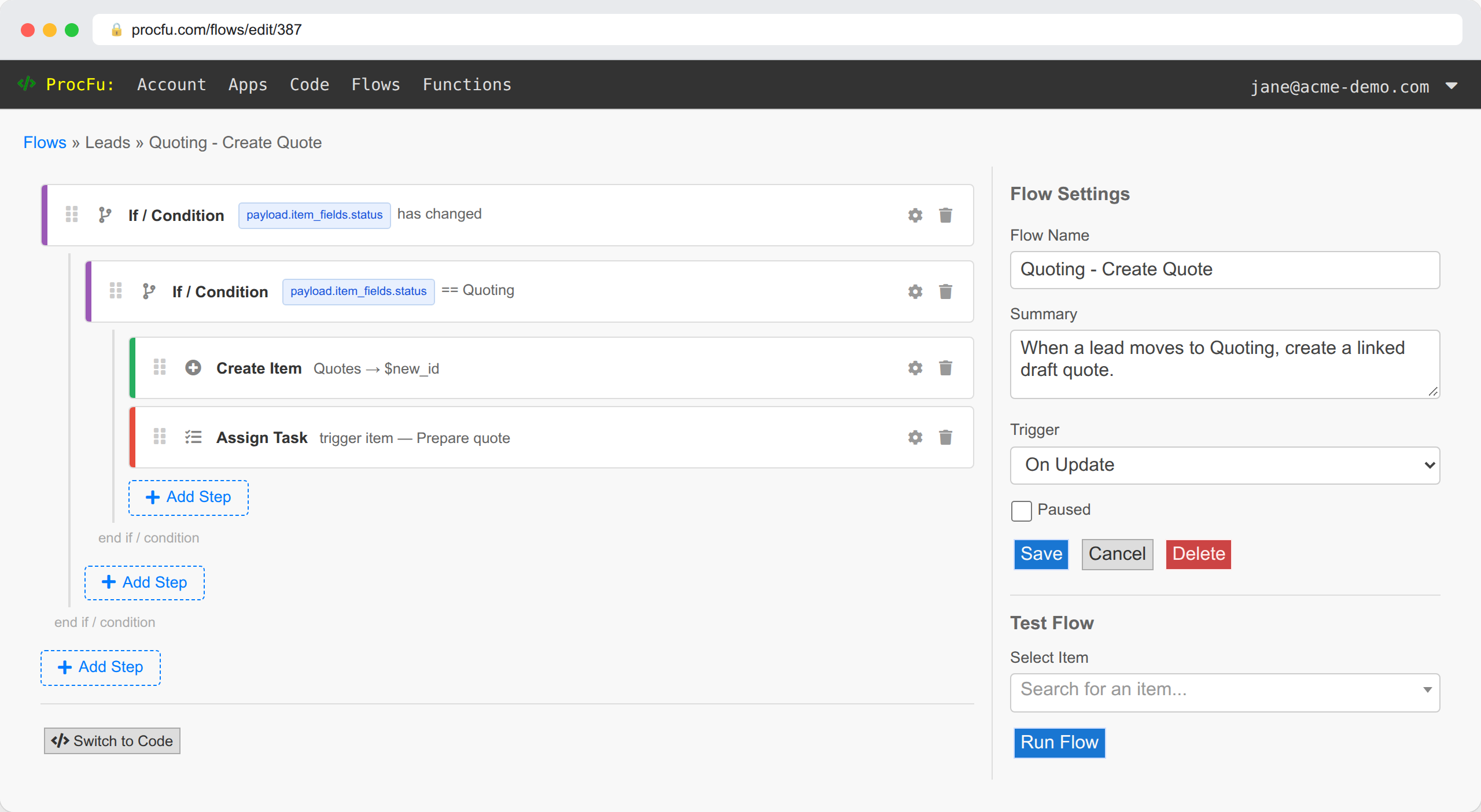
2. Quoting: create the quote record
Trigger: Leads, On Update.
- If / Condition: Status has changed. This operator only appears in update flows and stops the flow running on every unrelated edit.
- Inside it, another If / Condition: Status ==
Quoting. - Inside that, Create Item in Quotes. Map Title to the lead's name, Lead to
{{payload.item_id}}, and Status toDraft. - Assign Task on the lead to whoever writes quotes: "Prepare quote", due in 2 days.
In the builder it looks like this:
The Quote's relationship field now points back at the lead, so the quote shows up on the lead item in Podio.
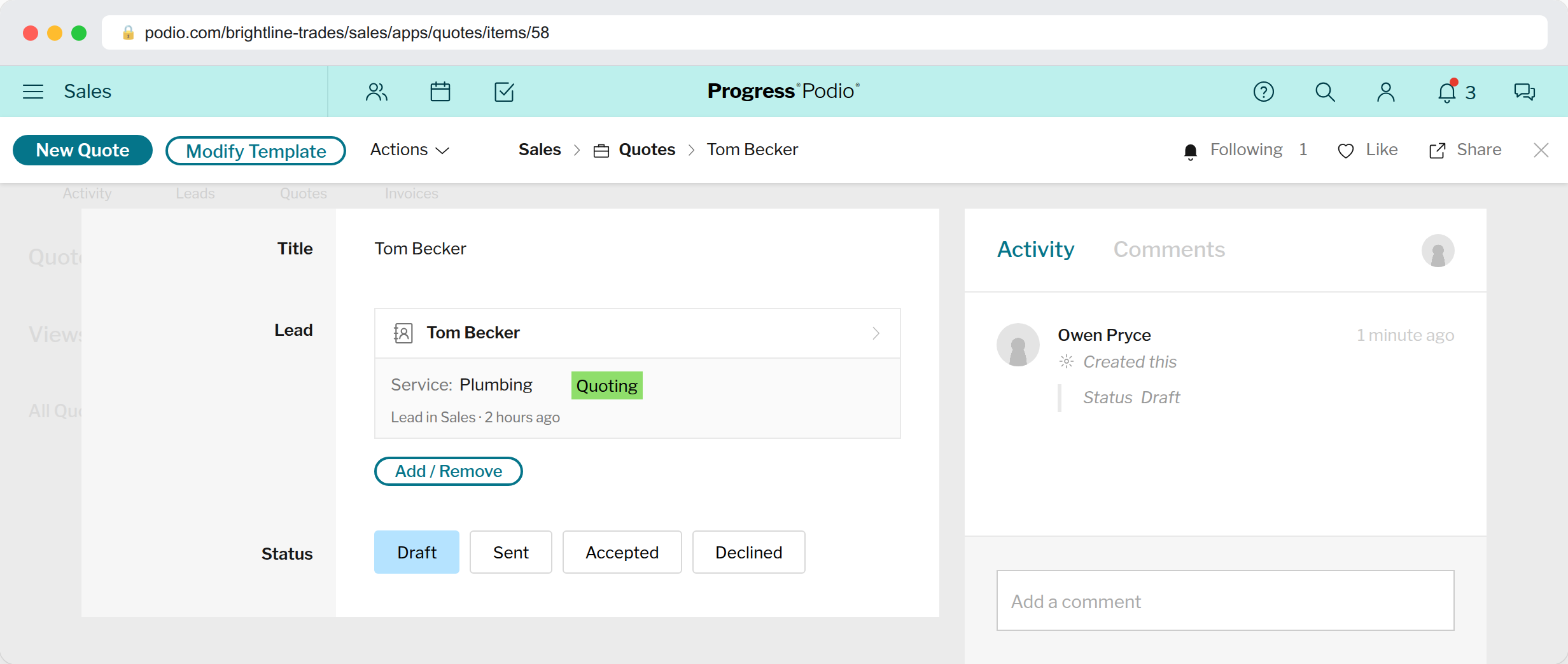
If someone moves a lead out of Quoting and back again, this flow will create a second quote. Either agree that Status only moves forward, or switch the flow to code and check for an existing quote before creating one.
3. Accepted: raise the invoice
Trigger: Quotes, On Update.
The same pattern: Status has changed, then Status == Accepted, then Create Item in Invoices with Quote set to {{payload.item_id}} and Status Draft. Add an Assign Task for your bookkeeper with a due date of tomorrow, and an Update Item brick if you also want to set the related lead's Status to Won.
Note that bricks write to Podio with webhooks turned off. That is deliberate: when a flow updates the item that triggered it, it does not set itself off again. The side effect is that an invoice created by this flow will not trigger On Create flows in the Invoices app. Changes people make to it afterwards will trigger flows as normal.
4. Every morning: nudge stale leads
Trigger: Leads, On Schedule, hour 8, every day. Scheduled flows run in your account's timezone.
In Podio, create a view on the Leads app that defines "stale" for you, for example Status is New. Then in the flow:
- Get Podio View for that view, saved as
items. - For Each over
items. - Inside the loop, Create Comment on
{{item.item_id}}: "Still marked New. Has anyone called {{item.title}}?"
The comment lands on the lead, so its follower gets a notification and the reminder is recorded on the item for later.
Using Podio Workflow Automation instead
If your workspace already runs on Podio Workflow Automation (PWA, formerly GlobiFlow), you can build the same four steps there and leave the routing and record creation in PWA. Bring ProcFu in for the parts PWA can't do on its own. PWA's Capture Result of a Remote ProcFu API Function action calls any ProcFu function, such as email_send_conn through a connected SMTP server, and returns its result into the flow.
Don't run both on the same trigger, though. If a PWA flow and a ProcFu flow both react to a lead moving to Quoting, you will get two quotes.
Testing it
Each flow editor has Run on Item: pick an existing lead and the flow runs with a full payload, as if the trigger had fired. Check the flow's log and its last payload to see what it received. Set up a test lead with your own email address and walk it through New, Quoting and Accepted before you put the form on your website.
Each flow run counts as one action against your ProcFu plan, as does each function call made from PWA. Update flows run on every edit to the item, even when the If brick stops them early, so busy apps use more actions than the number of leads suggests.
What you end up with
Every enquiry from the website becomes a Lead with the same required details. It has an owner and a dated task within seconds of arriving. Moving the lead to Quoting creates a linked quote, and accepting the quote creates a linked invoice that takes its amount from the quote. Leads that nobody has touched get a comment every morning until someone deals with them.
None of this replaces your accounting software. If invoices need to end up in an accounting package, the Invoices app is a staging point, and syncing it onward is a separate job.