
Working with Podio sometimes requires going beyond what standard workflow automation can offer.
You might want to generate a custom report, retrieve information across multiple apps, perform complex calculations, or process data in a particular way.
ProcFu lets you accomplish these tasks using ProcScript. But even when you know exactly what you want to achieve, translating that requirement into working code can take time.
You may need to look up Podio API functions, check the ProcScript documentation, and work out how to structure your code.
What if you could simply describe what you want the code to do?
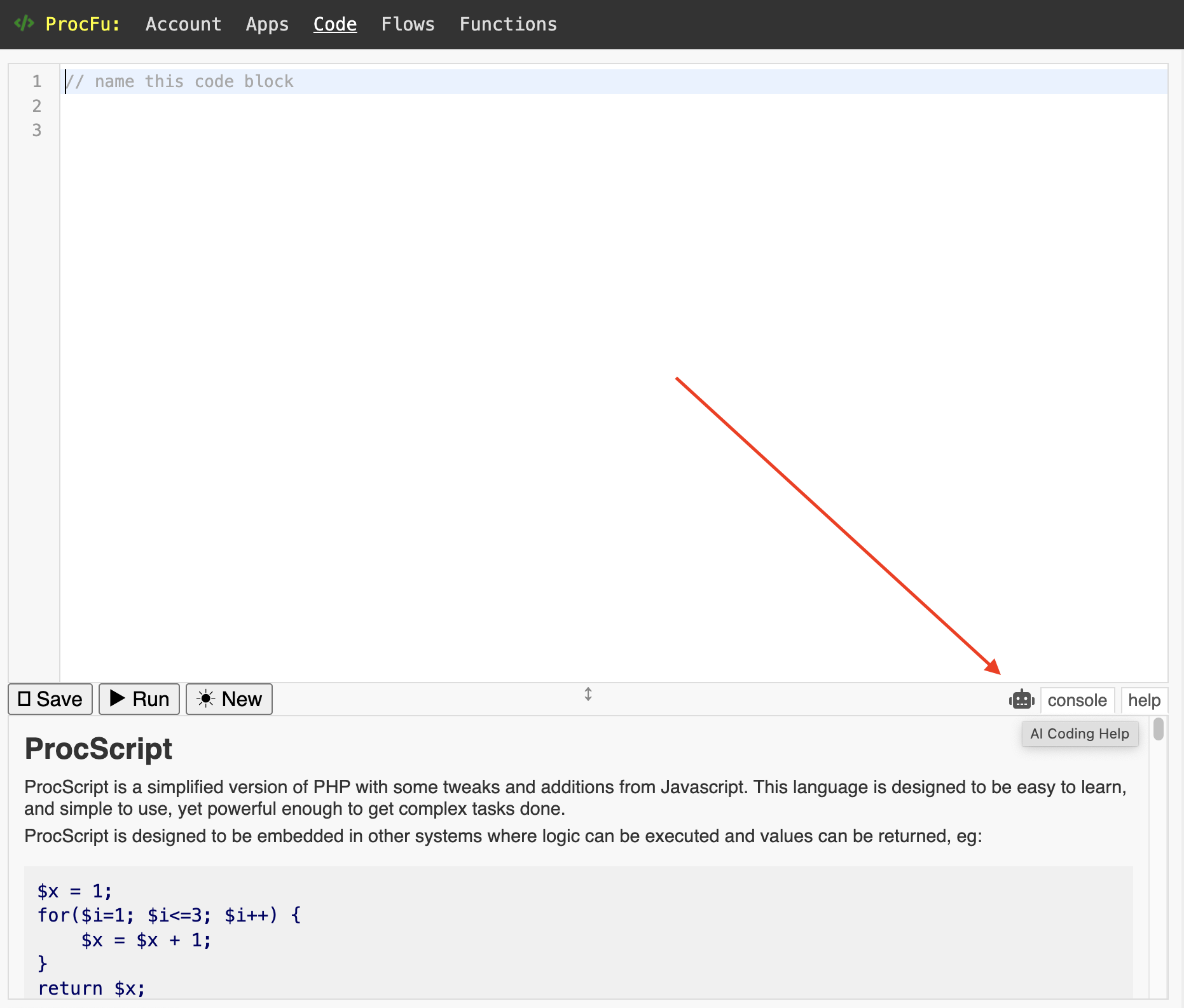
ProcFu's built-in AI Code Assistant allows you to generate and improve ProcScript code using natural language, directly inside the code editor.
You can start with an empty editor, describe your requirements, generate code, and refine it with further instructions without switching between different tools.
Let's demonstrate this with a practical example: auditing a Podio workspace to find out how many apps it contains, how many items exist in each app, and which apps are empty.
Step 1: Generate ProcScript using plain English
Navigate to the Code section in ProcFu, create a new code block, and click the AI Assistant icon at the bottom of the editor.
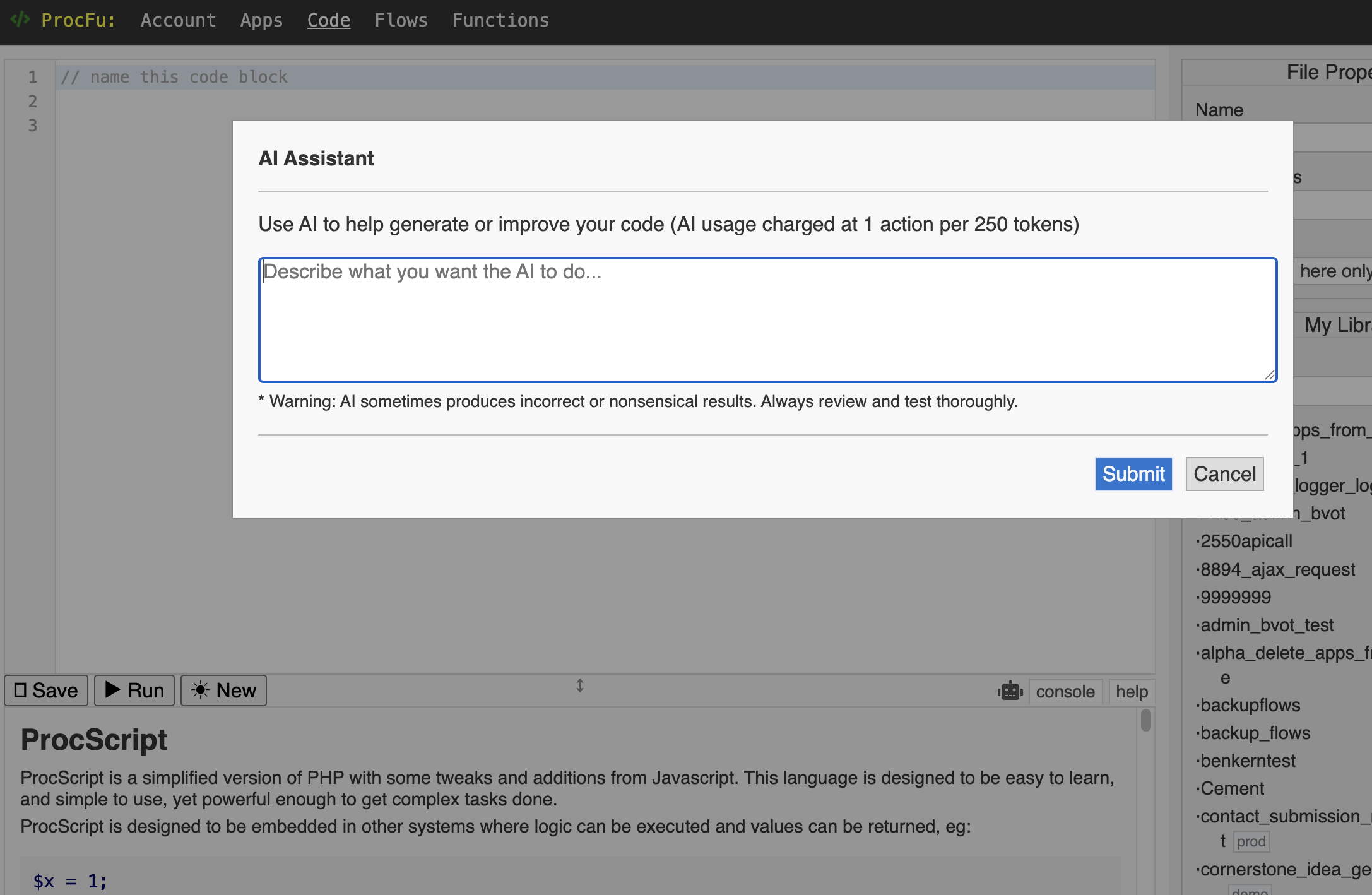
This opens a dialog where you can describe what you want the code to do.
For this example, we want to audit a Podio workspace and generate a report showing:
- The name and ID of each app.
- The number of items in each app.
- A list of apps sorted by item count.
- The total number of apps and items.
- A list of empty apps.
We provide the workspace URL along with these requirements and submit the prompt.
Prompt:
Write a ProcScript to audit the following Podio workspace:
https://podio.com/theworkingwebcom/testing-space/
Retrieve all apps in the workspace and generate a report containing:
- App name
- App ID
- Total number of items
Sort the apps by item count in descending order.
Also provide a summary showing the total number of apps, the total number of items across all apps, and a list of empty apps.
Use the available ProcFu functions for interacting with Podio. Return the results in a readable format.
The script should only retrieve information and must not modify any Podio data.
The AI Assistant generates the ProcScript required to retrieve the workspace information, iterate through its apps, count items, and produce a report.
Step 2: Debug the generated code
AI-generated code may not always work on the first attempt.
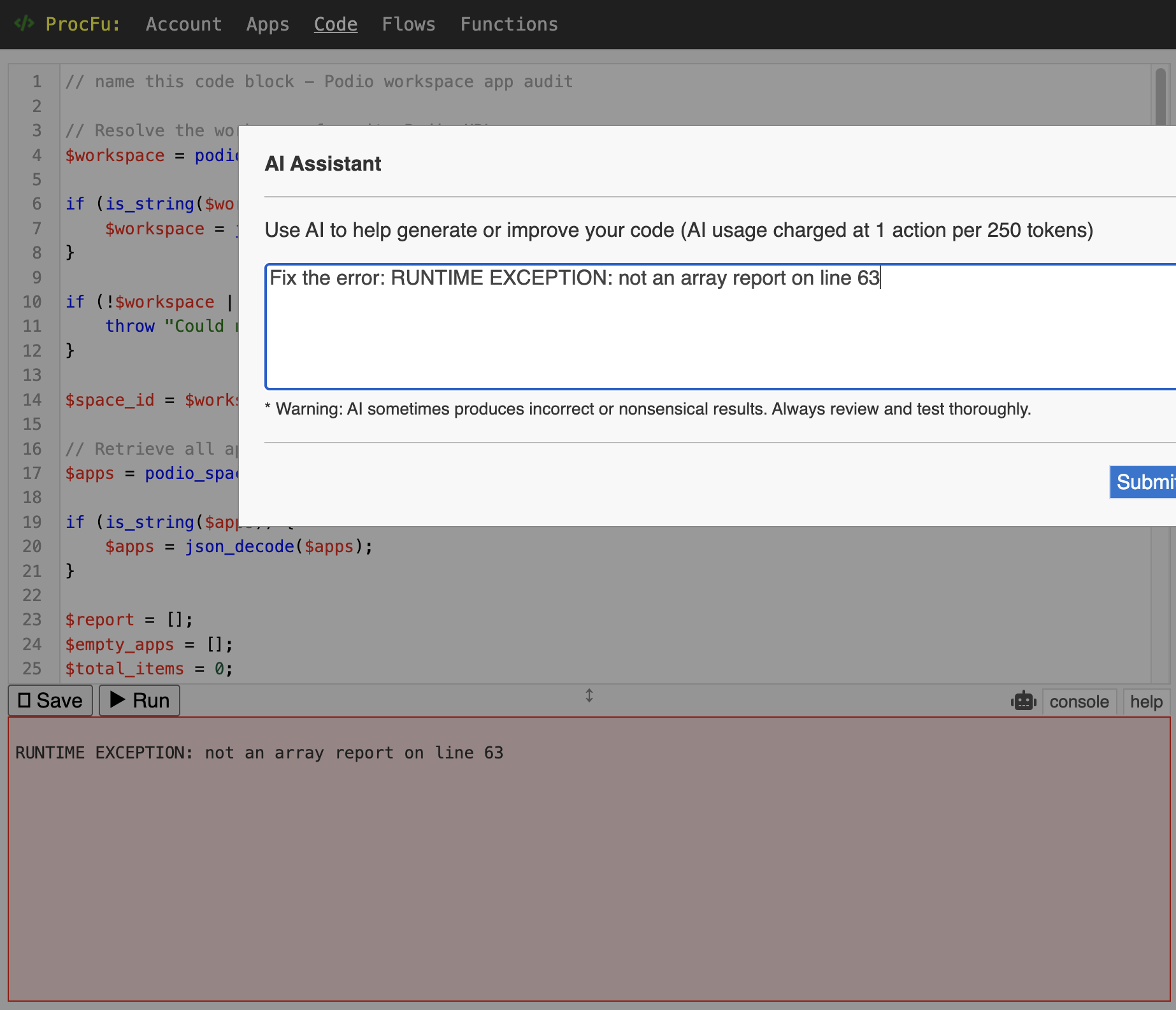
In our example, running the generated code produced the following error:
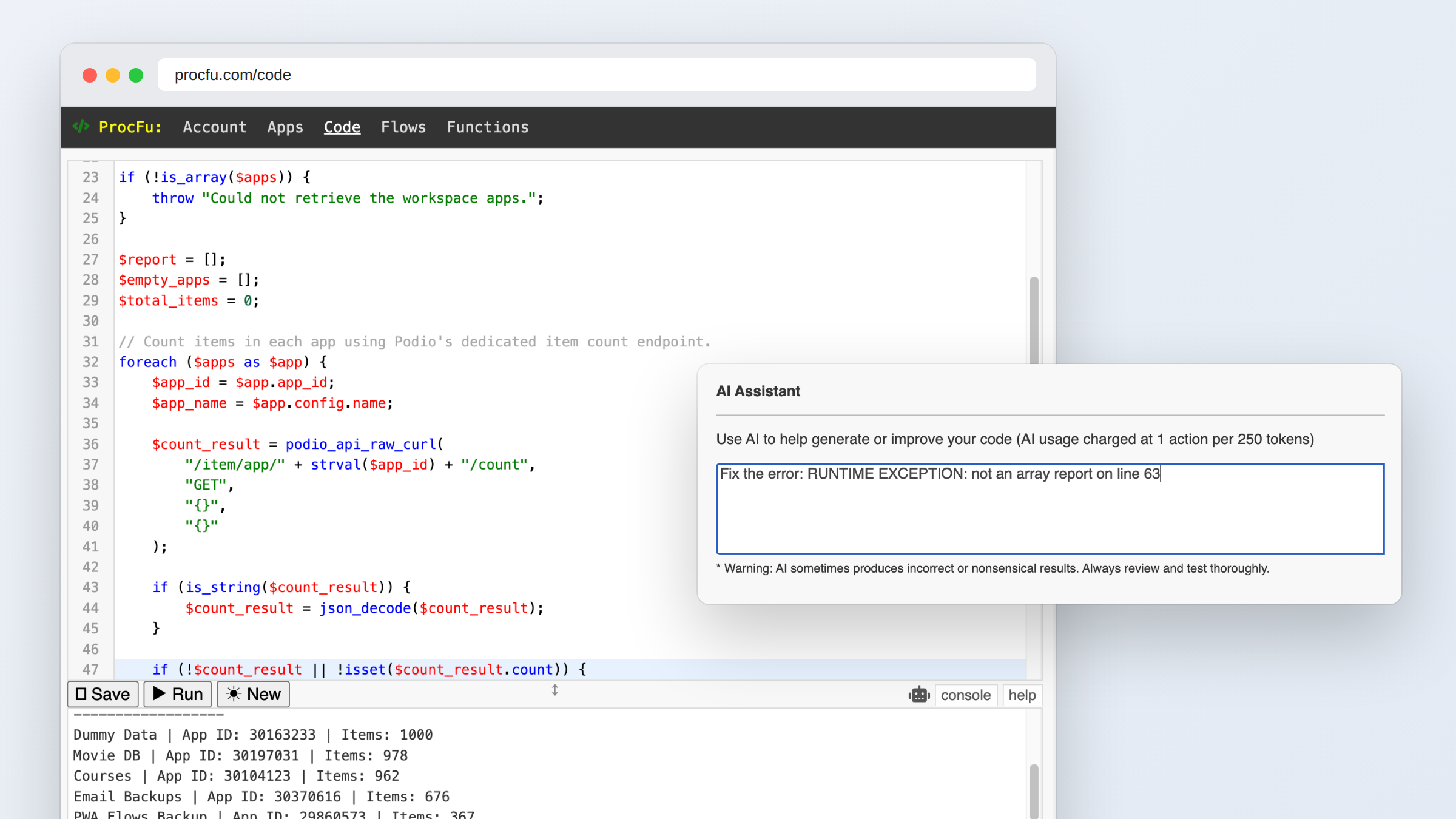
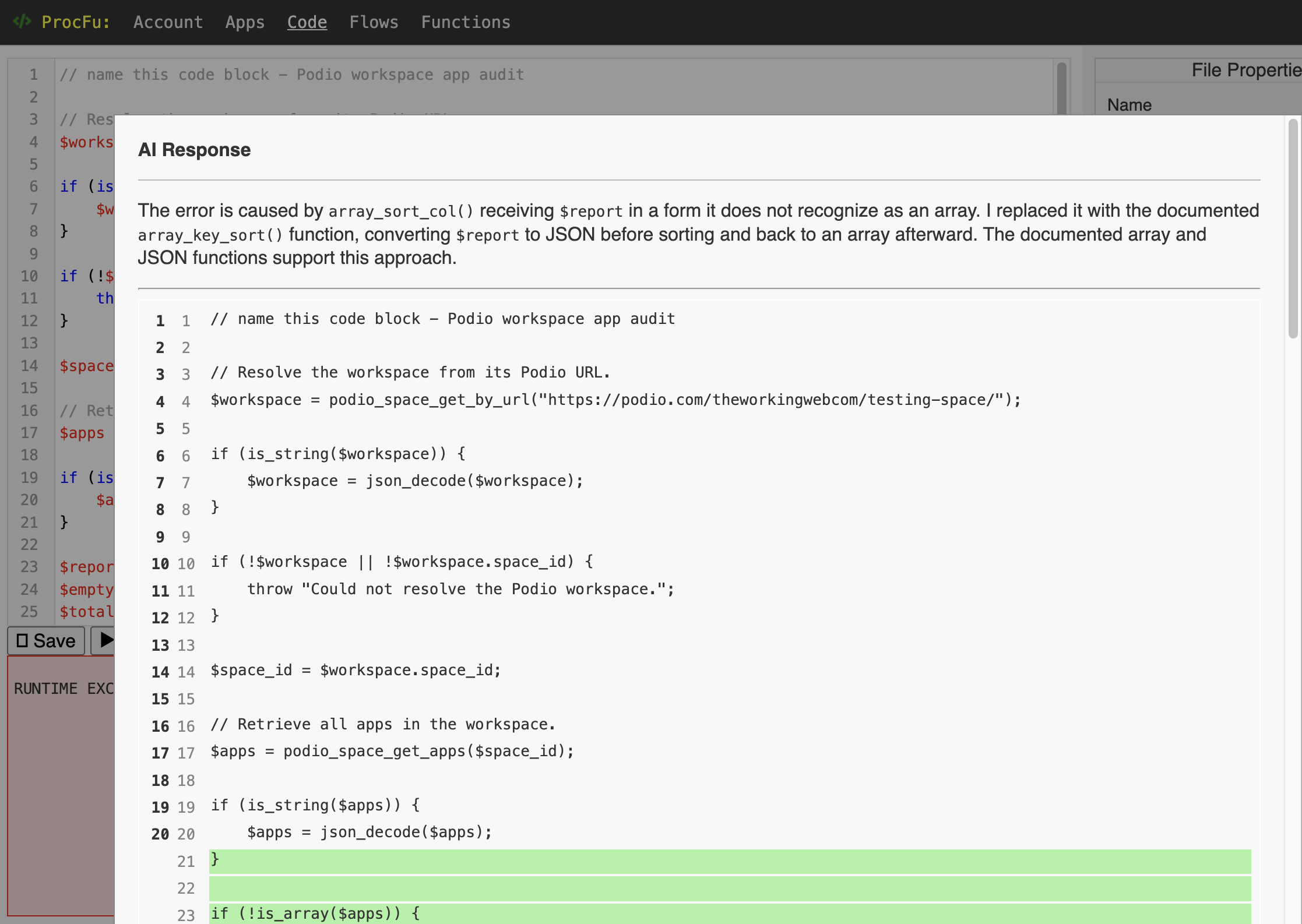
RUNTIME EXCEPTION: not an array report on line 63
Rather than manually investigating the error, we opened the AI Assistant again and provided the following instruction:
Fix the error: RUNTIME EXCEPTION: not an array report on line 63
The assistant identified an issue with the sorting function and proposed replacing array_sort_col() with array_key_sort(), along with the necessary data conversions.
It also provided an explanation of the changes.
We applied the changes and ran the script again.
Step 3: Refine the code when the results are incorrect
The script now executed successfully and retrieved all 24 apps in our Podio workspace.
However, every app returned an item count of zero.
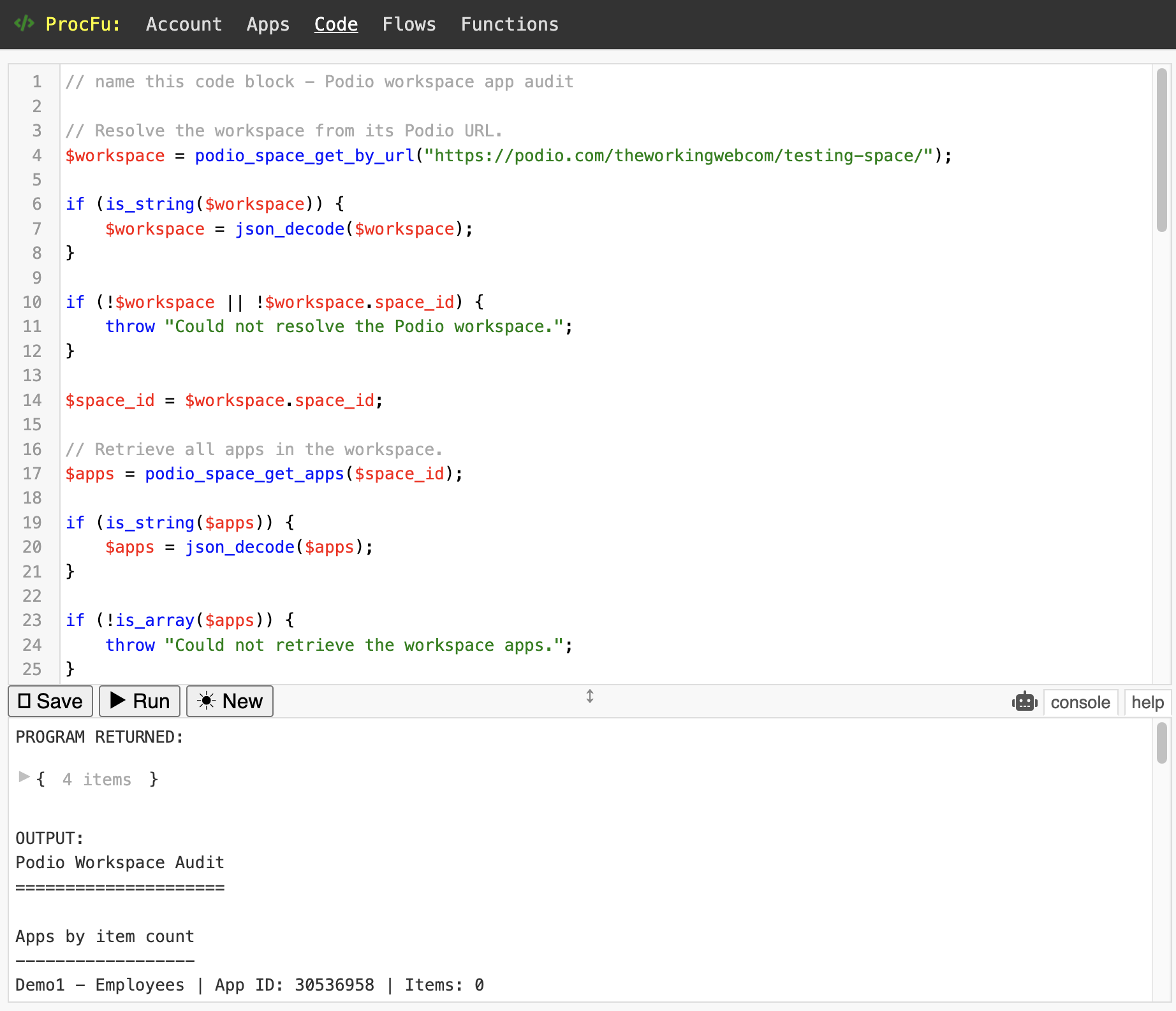
This is an important distinction. Just because code executes without errors does not mean it produces the correct results.
We opened the AI Assistant again and provided a more specific instruction:
Demo1 - Employees | App ID: 30536958 | Items: 0
Demo1 - Leave Requests | App ID: 30536960 | Items: 0
Why are all the lines returning item count as 0?
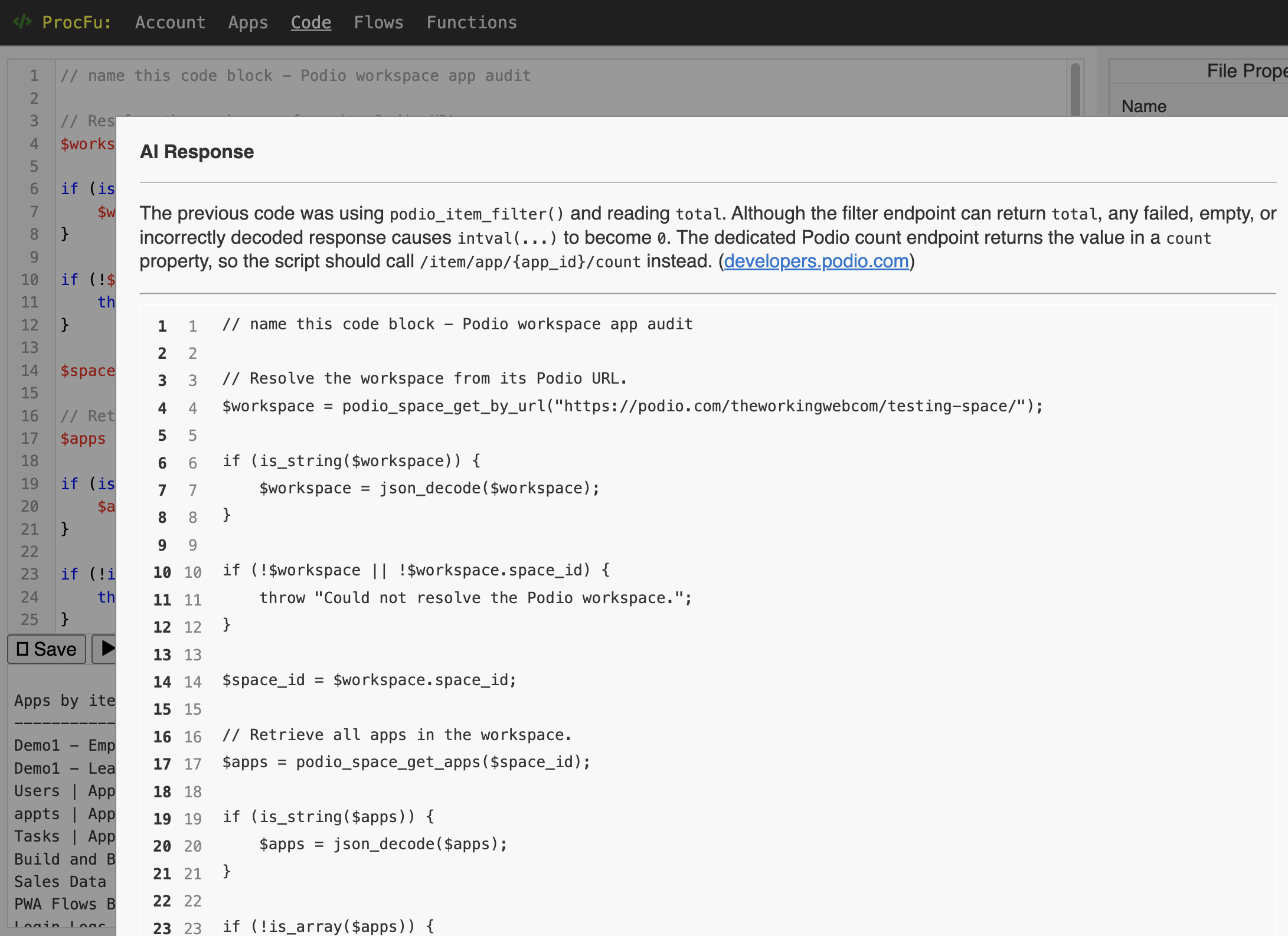
Use: https://developers.podio.com/doc/items/get-item-count-34819997 for counting
This time, we also provided a link to the relevant Podio API documentation.
The assistant identified that the previous code was using podio_item_filter() to obtain the item count and revised the script to use Podio's dedicated item count endpoint instead.
Step 4: Run the revised script
After applying the changes, we ran the script again.
This time, the report returned the item counts for all 24 apps, sorted in descending order.
| App | Item count |
|---|---|
| Dummy Data | 1,000 |
| Movie DB | 978 |
| Courses | 962 |
| Email Backups | 676 |
| PWA Flows Backup | 367 |
The complete workspace audit reported:
- Total apps: 24
- Total items: 4,515
- Empty apps: 0
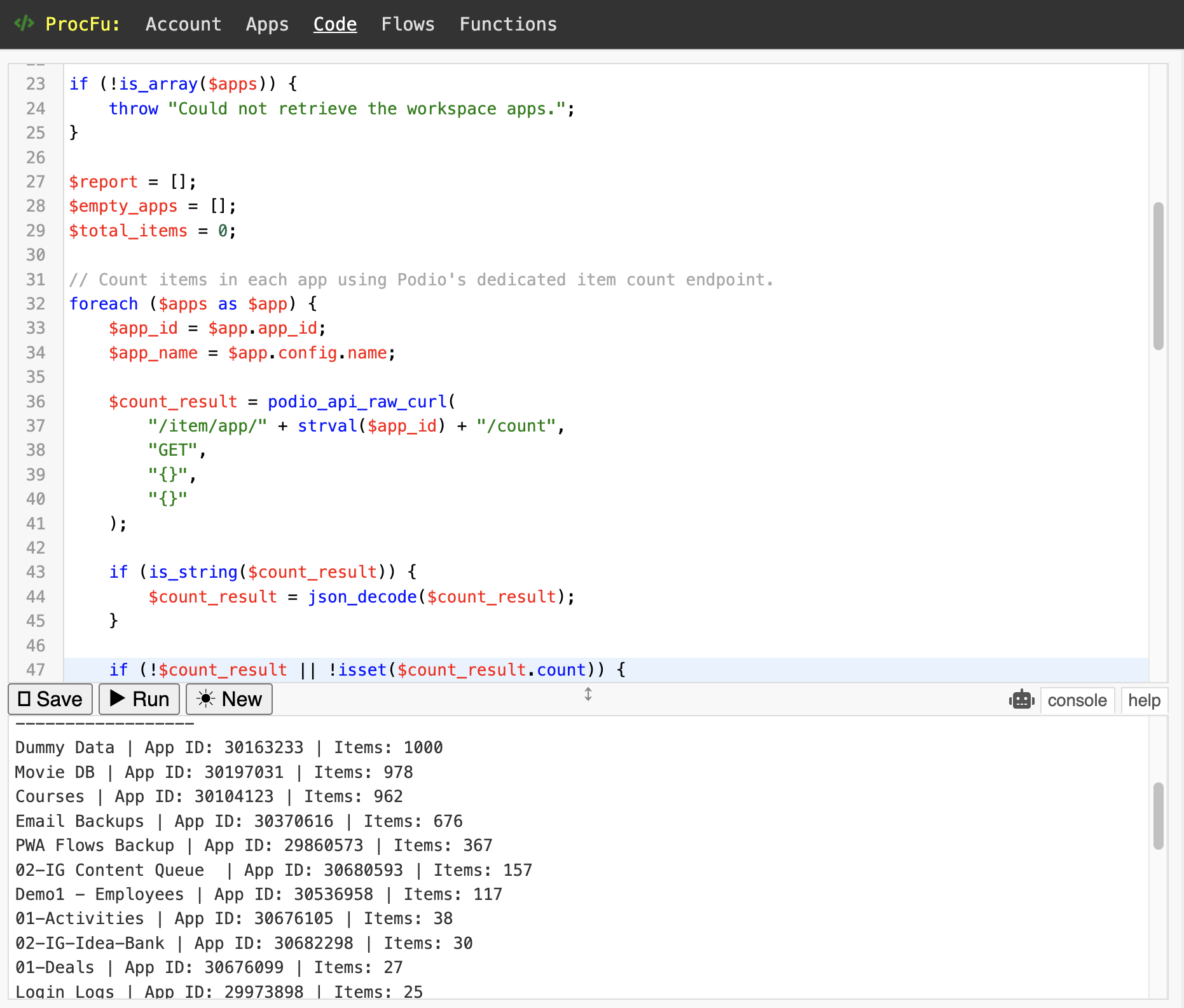
We went from an empty code editor to a working Podio workspace audit by describing our requirements, providing feedback, and refining the generated code directly inside ProcFu.
More than just code generation
The AI Code Assistant is not limited to generating new scripts.
You can also use it to:
- Debug errors in existing ProcScript code.
- Extend scripts with additional functionality.
- Improve existing logic.
- Understand how unfamiliar code works.
- Incorporate specific Podio API endpoints into your scripts.
Because the assistant is available directly inside the ProcFu code editor, you can generate, review, modify, and test your code without leaving your development environment.
AI assistance without losing control
As our example demonstrates, AI-generated code still needs to be reviewed and tested.
The first version encountered a runtime error. The second executed but returned incorrect results. Providing specific feedback, such as the exact error message, sample output, and a link to the relevant Podio API documentation, is what got us to a working script.
Treat the assistant like a fast collaborator: describe the goal clearly, run the code, check the results, and tell it exactly what went wrong. You stay in control of what runs against your Podio data.